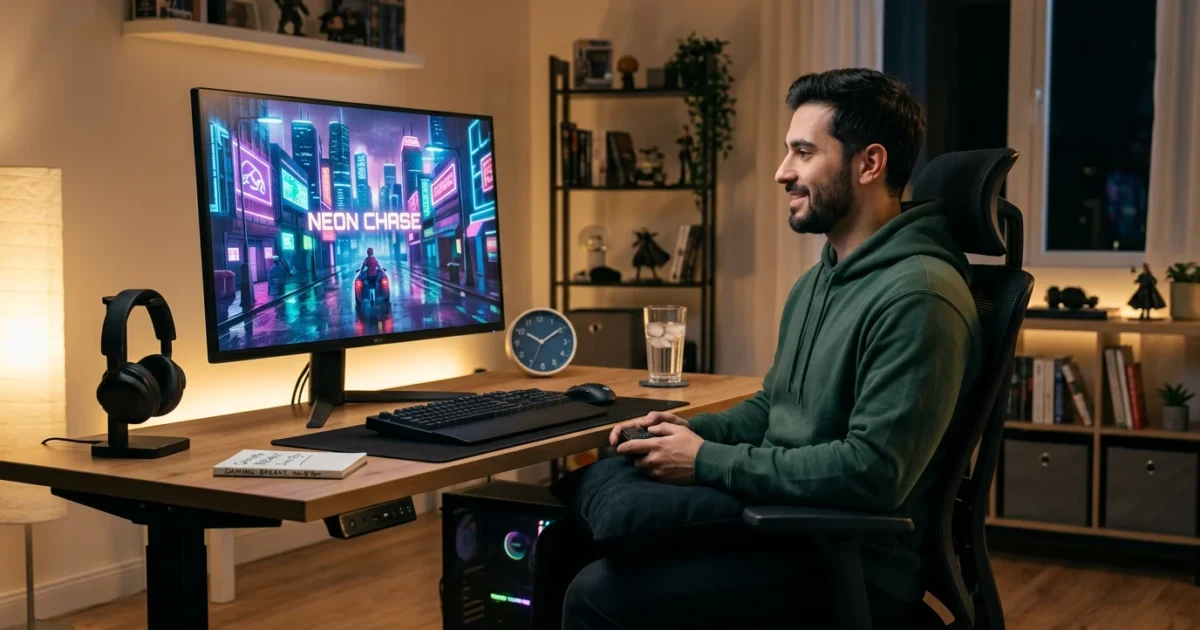
Health-information note: This guide offers general comfort and risk-reduction tips for adult players. It does not diagnose, treat, or prevent any medical condition, and it cannot account for individual health needs. Stop playing and seek appropriate professional advice if symptoms are severe, persistent, sudden, or unusual.
GTA 6 is likely to encourage long story sessions, free-roam exploration, retries, and late-night “one more mission” decisions. The safest approach is not to search for a trick that makes unlimited play harmless. No chair, drink, posture, or eye exercise removes the effects of prolonged sitting, repeated controller use, screen exposure, or lost sleep.
A better goal is to reduce avoidable strain: set up the screen and seat so the body can stay near a neutral position, change position regularly, take short breaks, protect sleep, and stop when warning signs appear. The recommendations below are based mainly on public guidance from OSHA, CDC/NIOSH, the FDA, and WHO.
Before planning a launch session, check the current GTA 6 release date and platform tracker. For claims about features, characters, locations, or other pre-release details, use the GTA6DATA Verified Facts Ledger rather than relying on unverified social posts.
If you are interested in the physical-reality side of the series rather than player ergonomics, our GTA weapon inventory weight calculation estimates what a GTA-style loadout would weigh in the real world.
The key rule: no posture stays “best” for hours
It is tempting to ask for the single posture that puts the least stress on the body. In practice, workstation guidance emphasizes neutral positioning and variation, not one frozen pose. Even a well-supported sitting position can become uncomfortable when held for too long.
For most seated controller sessions, a useful starting position looks like this:
- Head balanced over the shoulders rather than pushed forward.
- Neck near neutral, without repeatedly looking sharply up or down.
- Shoulders relaxed rather than raised.
- Upper arms close to the torso.
- Elbows comfortably bent, with forearms supported when possible.
- Wrists broadly in line with the forearms rather than bent sharply.
- Lower back supported by the chair.
- Hips level with or slightly higher than the knees.
- Feet supported by the floor or a stable footrest.
Do not force every joint into an exact angle. Bodies, chairs, controllers, disabilities, injuries, and comfort needs differ. Use the list as an adjustment guide, then change position before discomfort builds.
A lower-strain console setup
Place the screen close to natural eye level
Position the television or monitor so you can see the center of the action without lifting the chin or bending the neck for long periods. Avoid sitting so low that you must look upward at a wall-mounted television. If the screen is very large, increase viewing distance enough that you do not need to turn your head repeatedly to follow the interface.
Support the controller instead of holding it in mid-air
Rest the forearms lightly on armrests, cushions, or the thighs while keeping the shoulders relaxed. The support should not force the wrists upward or press hard into the forearms. Keep the controller close enough that you are not reaching forward from the shoulders.
Avoid the soft-couch collapse
A deep sofa can pull the pelvis forward, round the lower back, and push the head toward the screen. A small firm cushion behind the lower back and support under the feet may improve comfort. If the seat cannot be adjusted, alternate it with a firmer chair rather than trying to hold one slumped position for the entire session.
Use two kinds of breaks
Eye breaks and movement breaks solve different problems. Looking away from the screen does not replace standing up, and walking to the kitchen does not guarantee that the eyes have focused at a different distance.
For the eyes: try the 20-20-20 rule
CDC guidance suggests that every 20 minutes, you look at something about 20 feet away for 20 seconds. Treat this as an easy reminder rather than a medical guarantee. During the pause, blink normally and let the eyes focus beyond the screen.
For the body: leave the chair regularly
OSHA workstation guidance encourages frequent short pauses and gives time away from computer tasks as a practical way to vary posture. For gaming, a workable routine is to stand and move for several minutes at least once each hour, with additional brief position changes between missions, races, or deaths.
During a movement break, walk around, gently open and close the hands, roll the shoulders without forcing them, and change the position of the hips and knees. Painful stretching is not required. The purpose is to interrupt a static position, not to complete a workout.
Eye comfort: lighting, glare, blinking, and focus
Screen-related eye discomfort may include tired, dry, itchy, sore, or blurred eyes. Several environmental changes may make a session more comfortable:
- Reduce strong reflections on the screen.
- Avoid playing in a completely dark room with an extremely bright display.
- Adjust brightness and contrast to suit the room rather than automatically using the maximum setting.
- Increase interface or subtitle size instead of leaning forward or squinting.
- Remember to blink, especially during driving, shooting, or competitive sequences.
- Keep fans and air-conditioning from blowing directly across the eyes.
- Clean glasses and the display so blur is not caused by smears.
Contact-lens users should follow their eye-care professional’s instructions and normal lens hygiene. Do not recommend or use medicated eye drops merely because a gaming session is long. Persistent pain, marked redness, light sensitivity, double vision, sudden visual changes, or symptoms that do not settle after rest deserve professional assessment.
Hands, wrists, and controller grip
More force is not the same as more control. Use the lightest grip that still feels secure. Avoid holding the triggers half-pressed for long periods when the game allows a different control setting. Accessibility options, remapping, toggle inputs, aim assistance, and reduced vibration may lower repeated effort for some players.
Switching hand position occasionally can help, but do not continue through numbness, tingling, burning, weakness, swelling, or loss of grip. Those are stop signals, not challenges to overcome with another energy drink.
Sleep is part of the setup
The simplest way to reduce the impact of a long session is to decide its ending before it starts. Use a clock time, not “after the next mission.” Leave enough time to save, step away from the screen, complete normal bedtime tasks, and sleep before work, school, driving, childcare, or other safety-critical duties.
No wording should suggest that caffeine, supplements, a special posture, or a short nap makes sleep loss harmless. Feeling more alert does not necessarily restore judgment or reaction time to a fully rested level. If the planned session would make the following day unsafe, shorten the session.
Caffeine and energy drinks: count, do not guess
The FDA states that, for most adults, 400 milligrams of caffeine per day is an amount not generally associated with negative effects. This is not a recommended target, and sensitivity varies widely. The total can include coffee, tea, soda, energy drinks, chocolate, pre-workout products, and some medicines.
- Check the label and serving size.
- Count caffeine from every source during the day.
- Do not assume a larger can contains only one serving.
- Do not combine multiple high-caffeine products to “push through” exhaustion.
- Choose water and normal meals as the default, not as a cure or performance claim.
Children and adolescents, people who are pregnant or breastfeeding, people using certain medicines, and people with relevant medical conditions may need different limits or individualized advice. Palpitations, severe anxiety, chest pain, fainting, confusion, or other alarming symptoms require stopping and seeking appropriate medical help.
A practical long-session schedule
| Timing | Action |
|---|---|
| Before starting | Set an end time, adjust the chair and screen, place water nearby, and eat normally. |
| About every 20 minutes | Look into the distance for about 20 seconds and blink normally. |
| Between natural game breaks | Relax the grip, lower the shoulders, and change sitting position. |
| At least once each hour | Stand up and move for several minutes. |
| When symptoms appear | Stop rather than trying to play through pain, numbness, dizziness, or visual disturbance. |
| Before the planned end | Save at a safe point and leave time to wind down before sleep. |
Claims this guide deliberately avoids
Health statements should be accurate, limited, and supported. This article therefore does not claim that a posture “prevents injury,” that an eye routine “protects eyesight,” that water “improves gaming performance,” or that a product “eliminates fatigue.” More defensible wording describes a recommendation as something that may improve comfort, can reduce an avoidable source of strain, or is suggested by a named public-health or ergonomics source.
A disclaimer does not turn an unsupported medical claim into a safe claim. The claim itself must remain truthful and appropriately supported. Product recommendations, affiliate links, or sponsored content would require especially careful disclosure and evidence; none are included in this guide.
The bottom line
The least demanding gaming position is not a single pose held all night. Start near a neutral, supported posture; keep the screen easy to view; support the arms and feet; change position; rest the eyes; leave the chair regularly; and protect the next sleep period. Comfort measures can reduce avoidable strain, but they do not make unlimited play risk-free.
Sources and verification notes
- OSHA: Computer Workstation Positions
- OSHA: Monitor Placement and Glare
- OSHA: Work Process and Breaks
- CDC: Preventing Vision Loss and the 20-20-20 Rule
- CDC/NIOSH: Screen, Glare, and Workstation Guidance
- FDA: How Much Caffeine Is Too Much?
- WHO: Physical Activity and Sedentary Behaviour Guidelines
- FTC: Health Products Compliance Guidance
Last verified: July 29, 2026. Recommendations are general and should be updated if the cited agencies revise their guidance.